Dear Endministrator,
When experiencing the game on a PC device equipped with an NVIDIA graphics card, enabling optimization features in the NVIDIA App may potentially cause abnormal issues such as blurry graphics and game stuttering. If you encounter such problems, you may attempt the following solutions.
■ Revert Program Settings to Unoptimized State in NVIDIA App
· Open NVIDIA App - Go to [Graphics] - [Program Settings] - Select Arknights: Endfield
· Click the [Revert] button to change the game setting to the [Game isn't optimized] state.


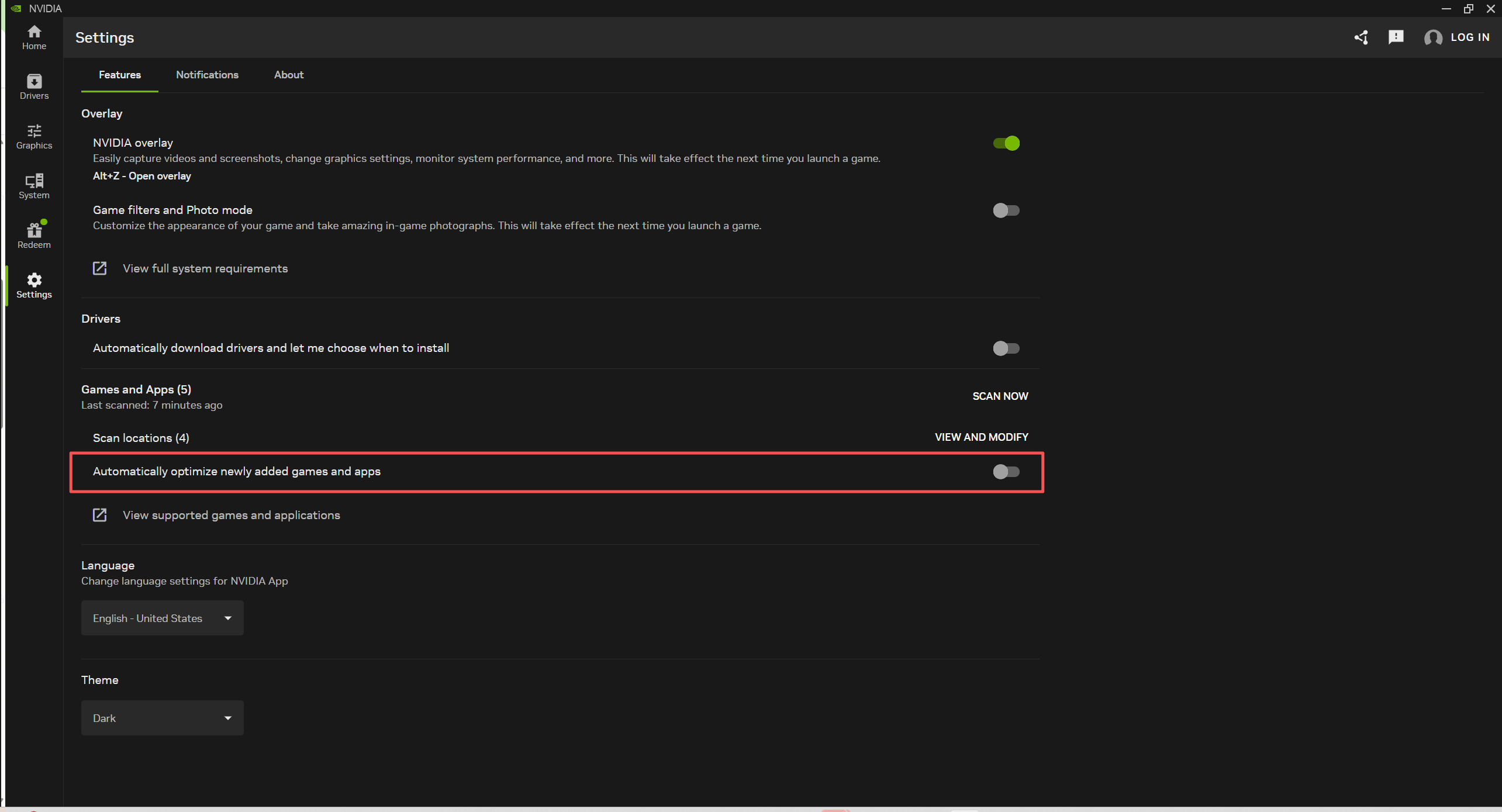
■ Disable Automatic Optimization in NVIDIA App
· Open NVIDIA App - Go to [Settings], find the [Automatically optimize newly added games and apps] option and turn it off.
■ Adjust 【Performance & Graphics】 Settings In-Game
· For Blurry Graphics:
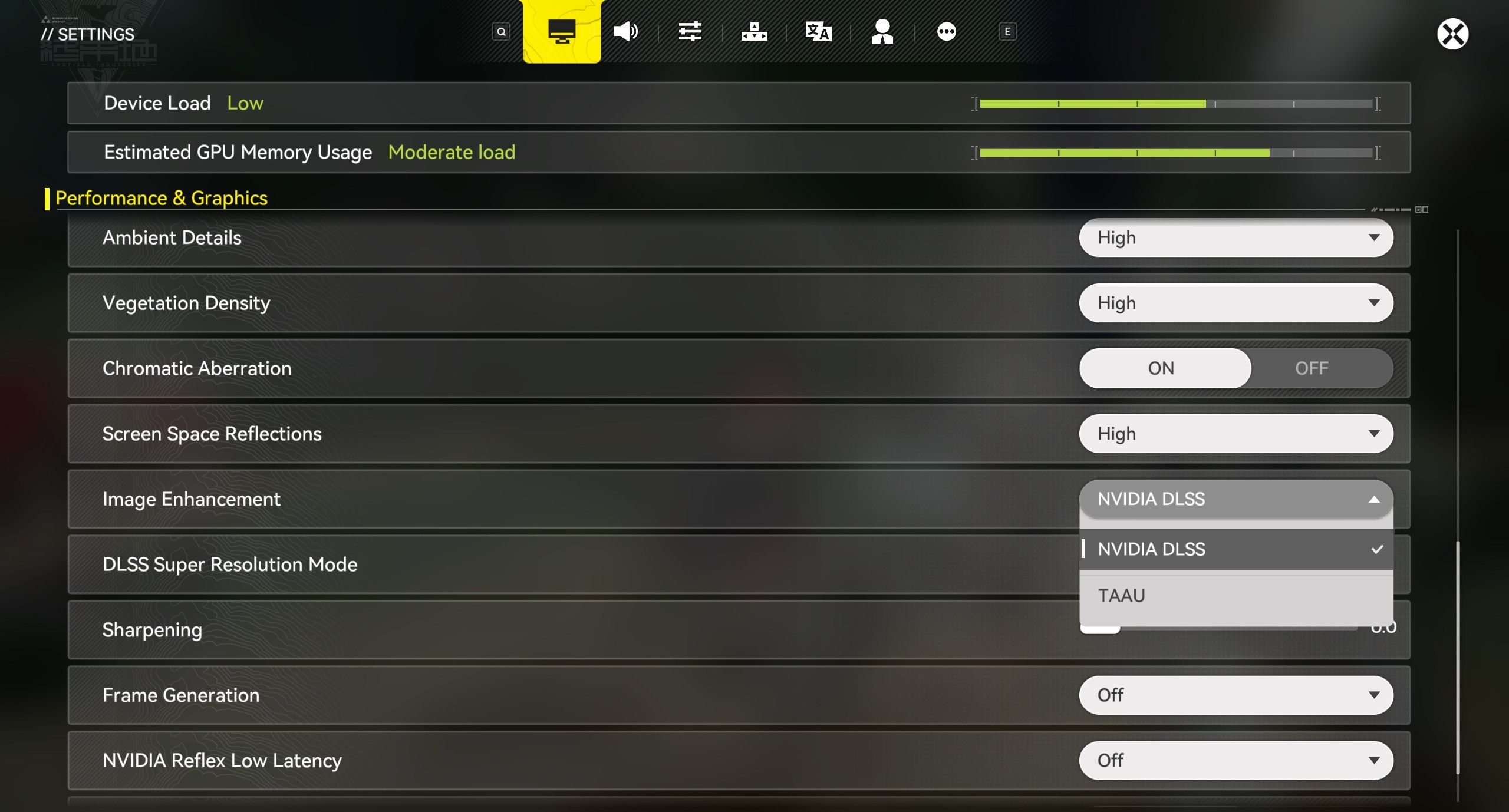
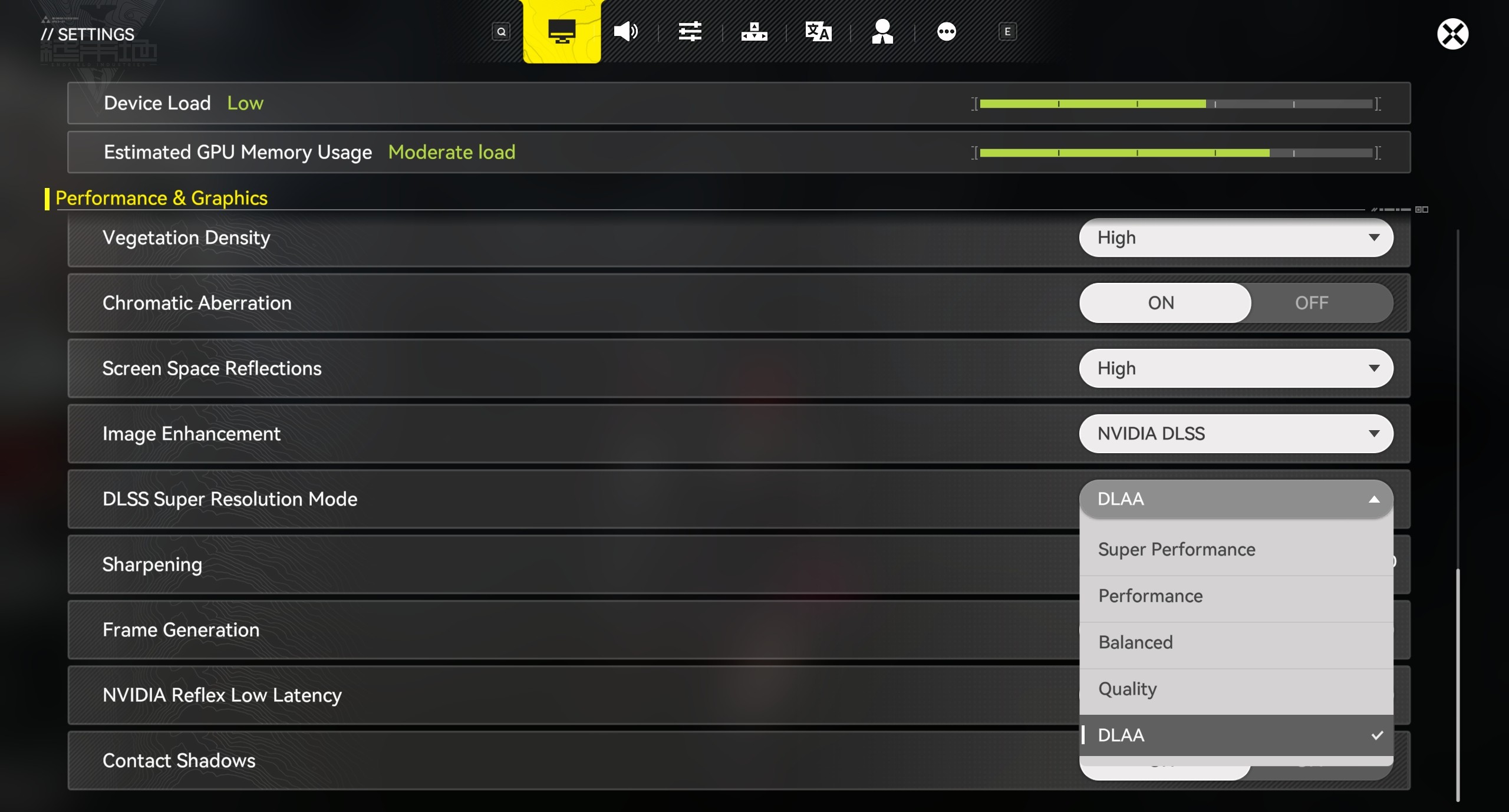
Method 1: Within Arknights: Endfield - Go to [Settings]- [Performance & Graphics] - [Image Quality Enhancement], select [NVIDIA DLSS], and adjust the [DLSS Super Resolution Mode] to an option suitable for your device's load.
※ This adjustment applies to graphics cards that support [NVIDIA DLSS].
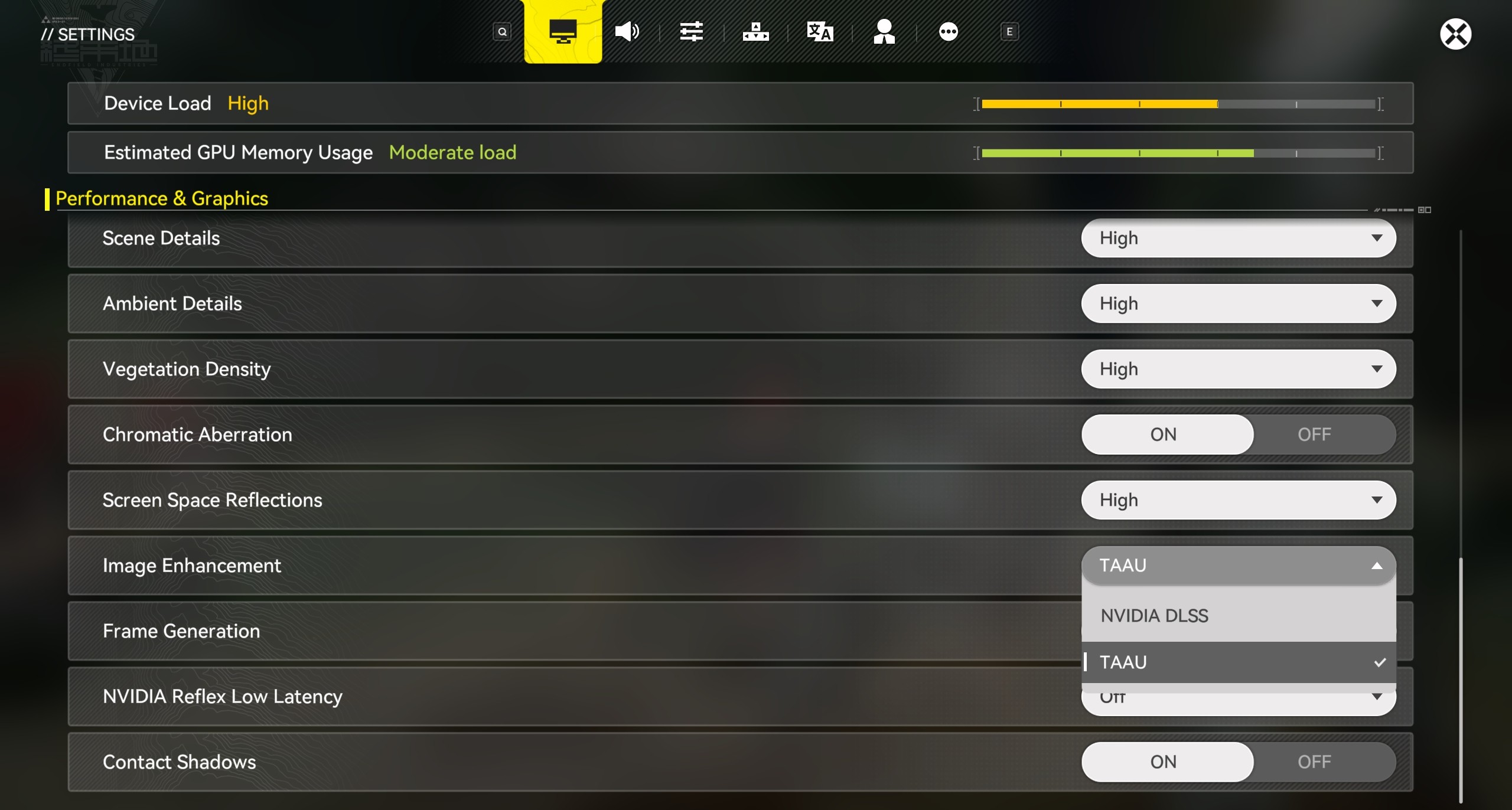
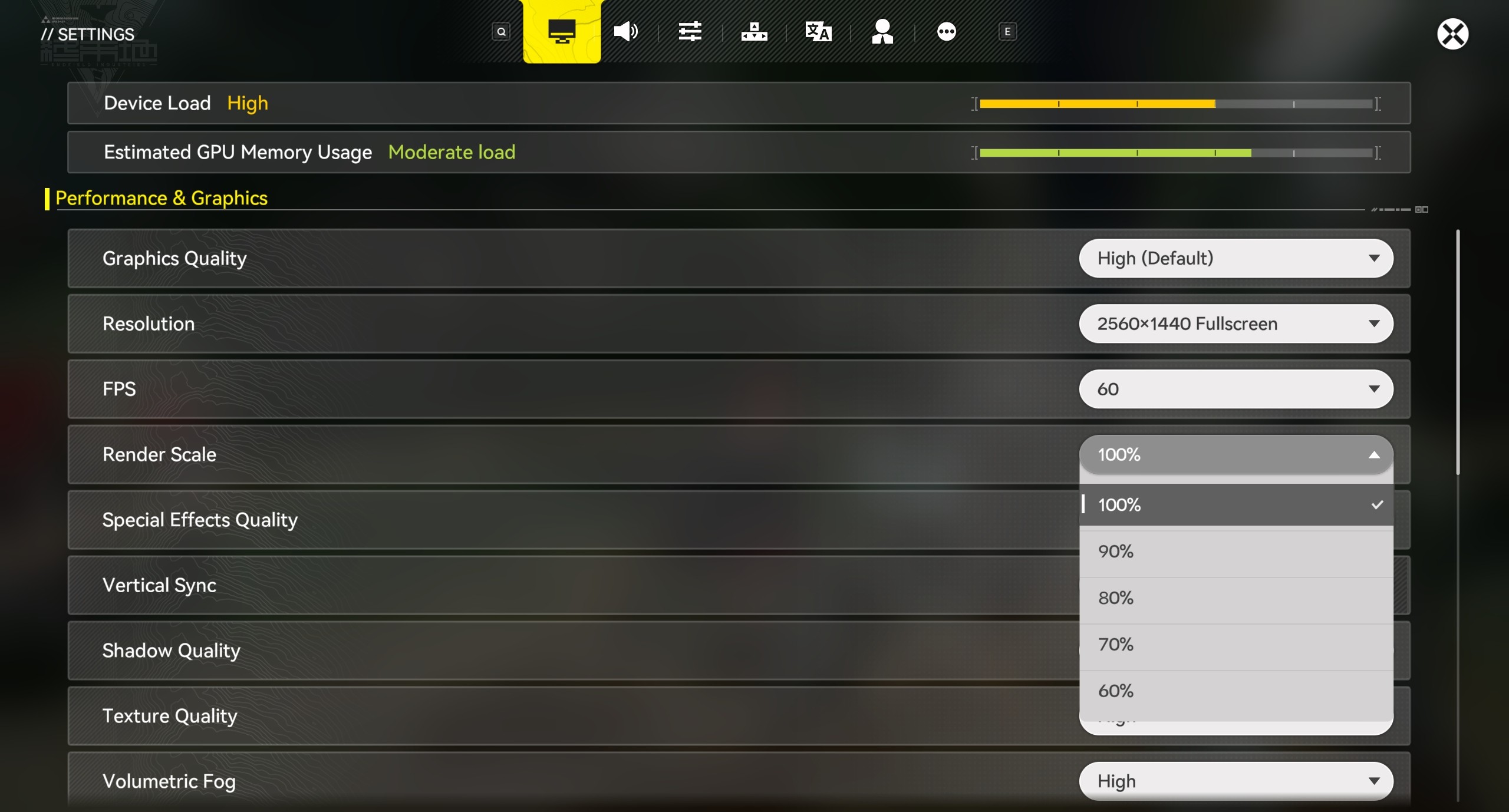
Method 2: Within Arknights: Endfield - Go to [Settings] - [Performance & Graphics] - [Image Quality Enhancement], change the option to [TAAU], then adjust the image quality using the [Render Scale] option.
· For Game Stuttering:
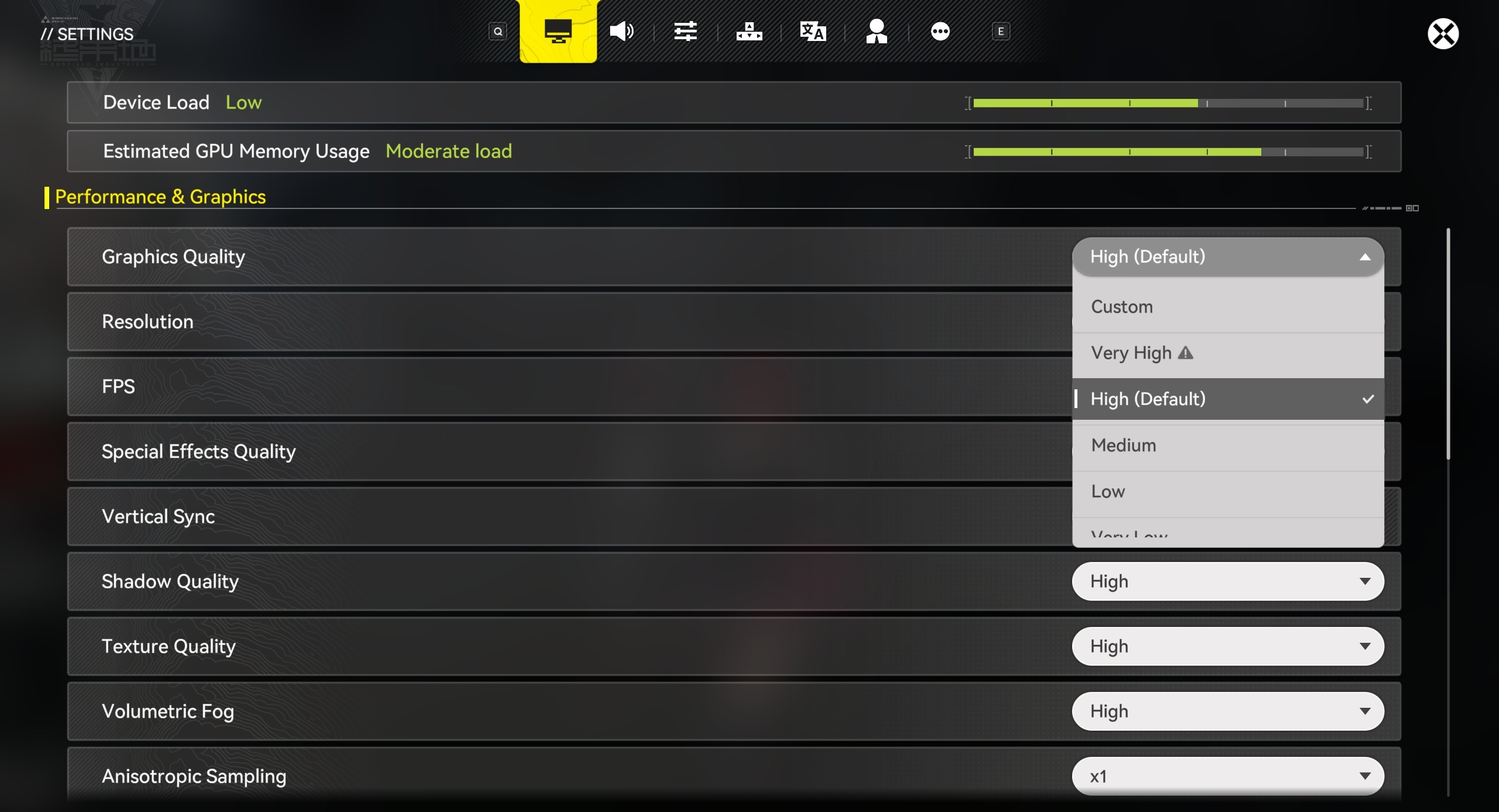
Within Arknights: Endfield - Go to [Settings] - [Performance & Graphics] - [Graphics Quality].
Adjust [Graphics Quality] to an option suitable for your device's load.
※ You can also further balance device load and visual performance by adjusting options such as [Resolution], [Anisotropic Sampling], [DLSS Super Resolution Mode] (appropriately lower the setting level; avoid using DLAA which has high performance cost, and select the "Balanced" mode), and [Frame Generation].
We sincerely apologize for any inconvenience caused by these issues. Thank you once again for your continued understanding and support of Arknights: Endfield!