Dear Endministrator,
Arknights: Endfield will be launching on the PlayStation®5 platform on January 22, 2026 (UTC+8). Below you'll find answers to common questions about PlayStation™Network (PSN), Gryphline Accounts, and cross-platform game progress synchronization.
Game Progress Synchronization
Q: What does account linking between PSN and a Gryphline Account mean?
A: Account linking allows accounts on two different platforms, a PSN account and a Gryphline Account, to share and carry over game progress and data. After an eligible PSN account and Gryphline Account are linked, you can log in using the Gryphline Account on iOS, Android, or PC, or use the linked PSN account on PlayStation®. In all cases, the same game progress will be shared.
Q: Is my game data shared across different servers or platforms under the same Gryphline Account?
A: Account data is not shared between different servers. For example, progress on the Americas / Europe servers is not shared with the Asia server.
However, within the same server, account data is shared across different platforms, including PC, Android, iOS, and PS5™.
Q: Which servers are supported on the PS5™ version of Arknights: Endfield?
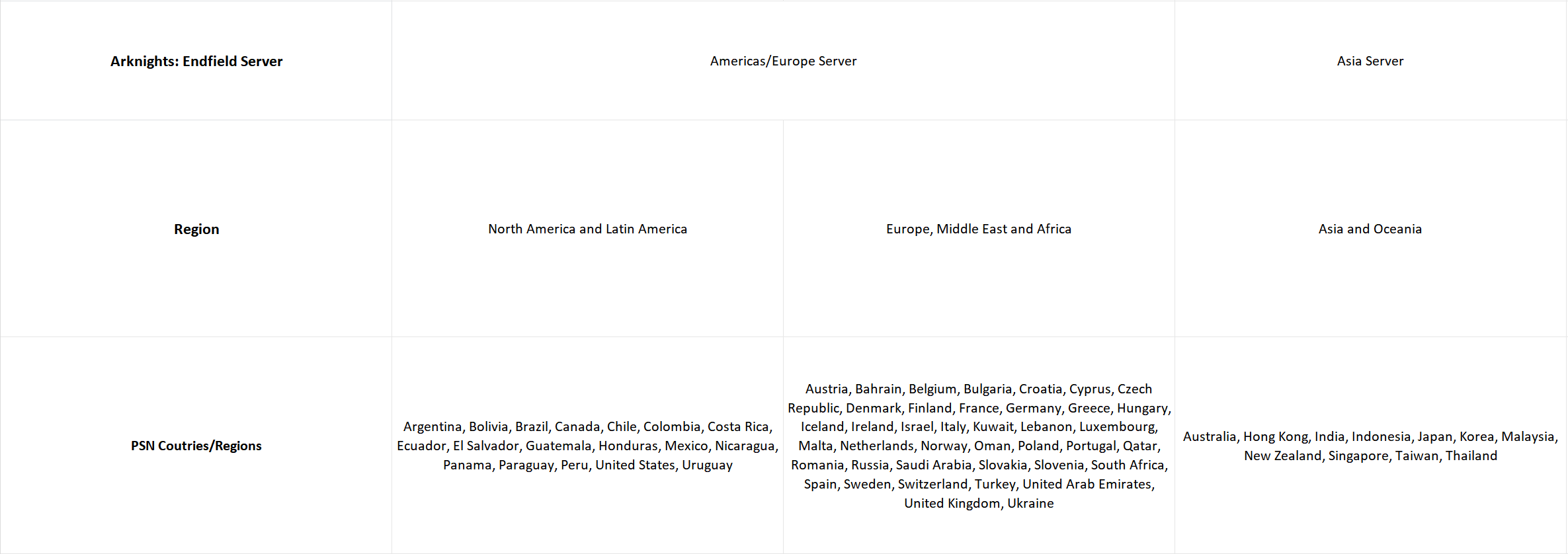
A: The PS5™ version of Arknights: Endfield supports the Americas / Europe server and the Asia server.
When you log in on PS5™, the game server will be automatically assigned based on the region of your PSN account. Manual server selection is not currently supported.
Examples
1. If your PSN account region is North America, you will be assigned to the Americas / Europe server.
2. If your PSN account region is Hong Kong, you will be assigned to the Asia server.
For details on your PSN account region, please refer to the table below or contact PlayStation Support directly.
Q: How do I enable account linking?
A: You must first link a PSN account that meets the linking requirements with a Gryphline Account. Once linked, both accounts will share the same game progress.
Account Linking
Q: Which accounts can be linked?
A: A PSN account and a Gryphline Account can be linked if one of the following conditions is met:
1. The PSN account has never logged into the game; or
2. The email address has never been registered with a Gryphline Account.
The steps are as follows:
1. If the PSN account has never logged into the game, you can link the email address of an existing Gryphline Account to that PSN account.
2. If the email address has not been used to register a Gryphline Account, you can link it to a PSN account that has already logged into the game. The email address will then be automatically registered as a Gryphline Account.
The following cases do not meet the linking requirements:
A PSN account has already logged into the game, and the email you attempt to link is already registered with a Gryphline Account.
This is because the first time a PSN account logs into the game, a Gryphline Account is automatically created for it. That PSN account cannot later be linked to a different existing Gryphline Account.
To link a PSN account that has already logged into the game, you must use an email address that has not been registered with a Gryphline Account.
Q: How do I link accounts?
A: The linking process is explained below by scenario:
Scenario 1:
You already have game progress on iOS, Android, or PC and want to link it to a PSN account that has never logged into the game.
How to link:
On PlayStation®, launch the game for the first time using a PSN account that has not previously logged in. Follow the on-screen prompt to link the email address of an existing Gryphline Account.
*Note: The linking prompt appears only when the PSN account logs into the game for the first time and accepts the user agreement. You can link an existing Gryphline Account only through this prompt. If you skip the prompt and choose quick login instead, the PSN account will automatically register a new Gryphline Account, making it impossible to link to another already registered Gryphline Account email.
Scenario 2:
You already have game progress on PlayStation® and want to link it to an email address that has not been registered as a Gryphline Account.
How to link:
Log in to the game on PlayStation®. Go to Settings → Platform & Account → User Center → Link Email, then link an email address that is not registered with a Gryphline Account using your current PSN account. Once the linking is complete, you can log in on iOS, Android, PC, or PlayStation® on the same server with this account, and your game progress will be shared across platforms.
Q: Can I unlink my PSN account after linking?
A: Yes. You can unlink it in the Gryphline Account User Center. However, each account can only unlink once. Please proceed carefully.
Q: What if the game closed abnormally during the first PSN login and the linking was not completed?
A: In this case, the linking pop-up will appear again the next time you log into the game.
Q: After linking, can I log in on iOS, Android or PC using a PSN account, or log in on PlayStation® using the linked PSN account email?
A: No. These login methods are not currently supported. Regardless of whether accounts are linked:
1. On iOS, Android, or PC, you can only log in using a Gryphline Account.
2. On PlayStation®, you can only log in using a PSN account.
Q: Can a PSN account with existing progress be linkedto an already registered Gryphline Account email?
A: No. Currently, only emails that are not registered as Gryphline Accounts can be linked. This is because a PSN account with existing progress is already associated with a Gryphline Account and cannot coexist with another Gryphline Account.
Q: How can I check which Gryphline Account email is linked?
A: After logging into the game, go to Settings → Platform & Account → User Center to view the linked email.
Q: Can a PSN account or an email be linked to multiple accounts?
A: No. One PSN account can only be linked to one Gryphline Account. One registered Gryphline Account email can only be bound to one PSN account.
Q: My email is already registered with a Gryphline Account. After logging into the game on PlayStation®, can I link this email in the User Center?
A: No. When a PSN account logs into the game, it automatically registers a Gryphline Account. Therefore, under Settings → Platform & Account → User Center → Link Email, you can only link an email that is not registered as a Gryphline Account.
It is recommended to use a PSN account that has never logged into the game and complete the linking through the pop-up shown at first launch.
Q: My email is registered as a Gryphline Account but has never logged into the game. Can I log in on PlayStation® and link this email in the User Center?
A: No. An email that is already registered with a Gryphline Account cannot be linked to a PSN account that has logged into the game.
You may either change the linked email of the Gryphline Account to release the email from the current Gryphline Account, or use a different email that has not been registered as a Gryphline Account.
Q: If I miss the linking pop-up on first login, will it appear again? Can I link later in the User Center?
A: No. The linking pop-up only appears on first login. If you skip it, it will not appear again. Please be careful when linking your account.
When you log in for the first time with a PSN account and see the pop-up, it means this PSN account has not yet been linked to any Gryphline account. If you skip the pop-up, a new Gryphline account is automatically created for that PSN account. After that, you cannot link it to an existing email through the User Center.
Q: How do I check my linked PSN account?
A: After logging into the game on any platform, go to Settings → Platform & Account → User Center to view the linked PSN account.
Q: After linking, will iOS, Android, or PC progress unlock PlayStation® trophies?
A: Yes. After linking, the corresponding trophies will unlock automatically when you log in on PlayStation®.
Top-up
Q: How are Arknights: Endfield pre-order packs distributed on the PlayStation™Store?
A: The pre-order packs will be delivered after the official launch of the PlayStation®5 version of Arknights: Endfield, to the in-game character under the Gryphline Account used when first entering the game on PlayStation®.
Friends
Q: How are friends lists displayed after linking my PlayStation® account with my iOS, Android, or PC account?
A: Once your accounts are linked, two friend lists will be shown: 1. Arknights: Endfield Friends – visible on all platforms. 2. PlayStation™Network Friends – visible only when logged in on PlayStation®.
Q: What is the relationship between the Arknights: Endfield Friends List and the PlayStation™Network Friends List?
A: Arknights: Endfield Friends are friends you add in-game. PlayStation™Network Friends are friends from the PSN account.
Actions on friends on iOS, Android, or PC do not affect PlayStation™Network friend status.
Blocking a friend of your PSN account removes them from both PlayStation™Network Friends List and Arknights: Endfield Friends List. The friend remains visible when you play on other platforms.
Removing a friend from your PSN account only removes them from the PlayStation™Network Friends List. The Arknights: Endfield Friends List remains unchanged.
Q: What interactive features are supported in each friend list?
A: Arknights: Endfield Friends – Full interactions such as visiting ships, chatting, and viewing profiles. PlayStation™Network Friends – Basic information viewing only.
Q: How can I view a PlayStation™Network friend's Online ID?
A: The Online ID can only be viewed in the Friends interface when both you and the friend are logged into the PlayStation® platform.